Hover Gallery
Explore the shade, base and profile of a product with a pointer, touch or keyboard.
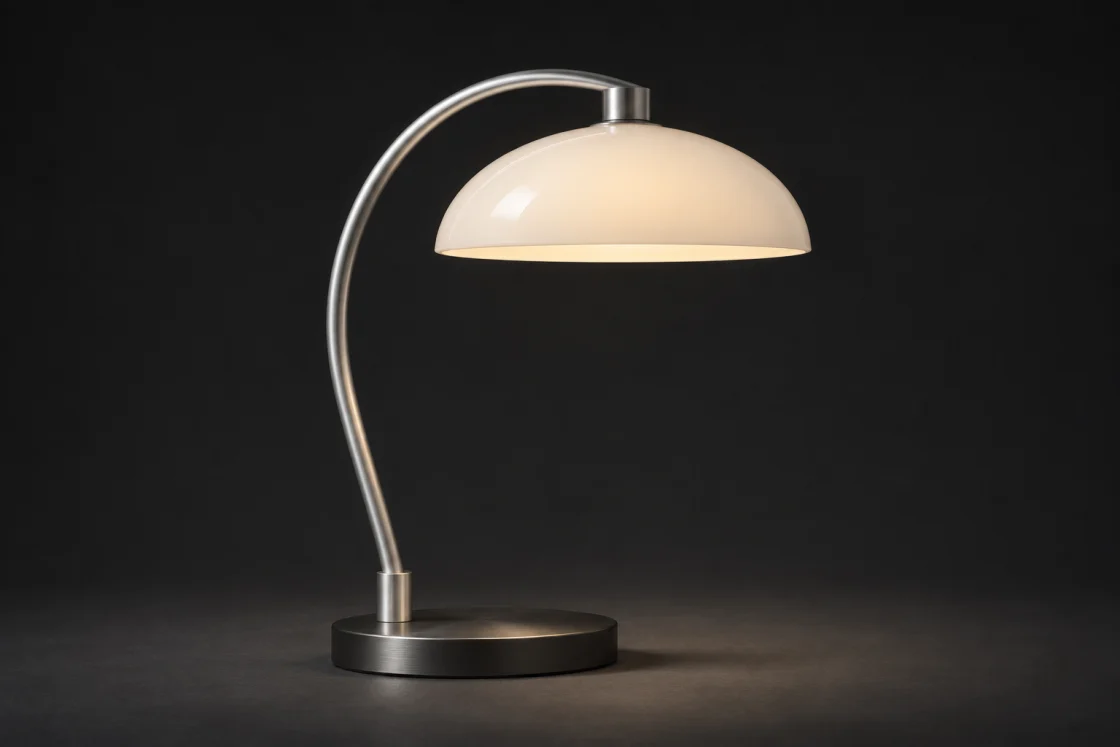
Arc Task Lamp
HTML
<rl-gallery class="rl-media-card" role="region" aria-label="Product details" aria-roledescription="carousel" data-rl-hover-preview>
  <ol class="rl-gallery-track" tabindex="0" aria-label="Product photographs">
    <li data-rl-slide="profile" data-label="Profile">
      <span class="rl-lamp-photo" data-finish="ivory" data-view="profile">
    <img src="/studio-lamp.webp" alt="Arc Task Lamp, Profile" width="1120" height="747" loading="lazy" decoding="async" draggable="false">
  </span>
    </li>
    <li data-rl-slide="shade" data-label="Enamel detail">
      <span class="rl-lamp-photo" data-finish="sand" data-view="shade">
    <img src="/studio-lamp.webp" alt="Arc Task Lamp, Enamel detail" width="1120" height="747" loading="lazy" decoding="async" draggable="false">
  </span>
    </li>
    <li data-rl-slide="base" data-label="Brushed base">
      <span class="rl-lamp-photo" data-finish="graphite" data-view="base">
    <img src="/studio-lamp.webp" alt="Arc Task Lamp, Brushed base" width="1120" height="747" loading="lazy" decoding="async" draggable="false">
  </span>
    </li>
  </ol>
  <div class="rl-media-caption">
    <div><strong>Arc Task Lamp</strong><output data-rl-gallery-label aria-live="polite">Profile</output></div>
    <div class="rl-gallery-arrows">
    <button type="button" data-rl-prev aria-label="Previous image" aria-disabled="true"><span aria-hidden="true">←</span></button>
    <button type="button" data-rl-next aria-label="Next image"><span aria-hidden="true">→</span></button>
  </div>
  </div>
  <form class="rl-gallery-choices">
    <fieldset><legend>View</legend>
      <label>
        <input type="radio" name="view" data-rl-gallery-choice value="profile" checked>
        <span class="rl-gallery-thumb"><span class="rl-lamp-photo" data-finish="ivory" data-view="profile">
    <img src="/studio-lamp.webp" alt="" width="1120" height="747" loading="lazy" decoding="async" draggable="false">
  </span></span>
        <span>Profile</span>
      </label>
      <label>
        <input type="radio" name="view" data-rl-gallery-choice value="shade">
        <span class="rl-gallery-thumb"><span class="rl-lamp-photo" data-finish="sand" data-view="shade">
    <img src="/studio-lamp.webp" alt="" width="1120" height="747" loading="lazy" decoding="async" draggable="false">
  </span></span>
        <span>Enamel detail</span>
      </label>
      <label>
        <input type="radio" name="view" data-rl-gallery-choice value="base">
        <span class="rl-gallery-thumb"><span class="rl-lamp-photo" data-finish="graphite" data-view="base">
    <img src="/studio-lamp.webp" alt="" width="1120" height="747" loading="lazy" decoding="async" draggable="false">
  </span></span>
        <span>Brushed base</span>
      </label>
    </fieldset>
  </form>
</rl-gallery>
On a mouse, hover a thumbnail to preview it. Tap or select a thumbnail with the keyboard for the same view.
Use in your app
Copy these tags into your page head once. Serve the files at the paths shown, then add the example’s template to your page.
Page assets
<link rel="stylesheet" href="/mero.css">
<link rel="stylesheet" href="/mero-gallery.css">
<script defer src="/mero.js"></script>
<script defer src="/mero-gallery.js"></script>